Record a tutorial without blurring it afterwards
Veil is a free Chrome extension that covers sensitive data on the page before you record, so the video is clean from the first frame. You set it up once per site, and it covers matches that load later, after you scroll or switch pages.
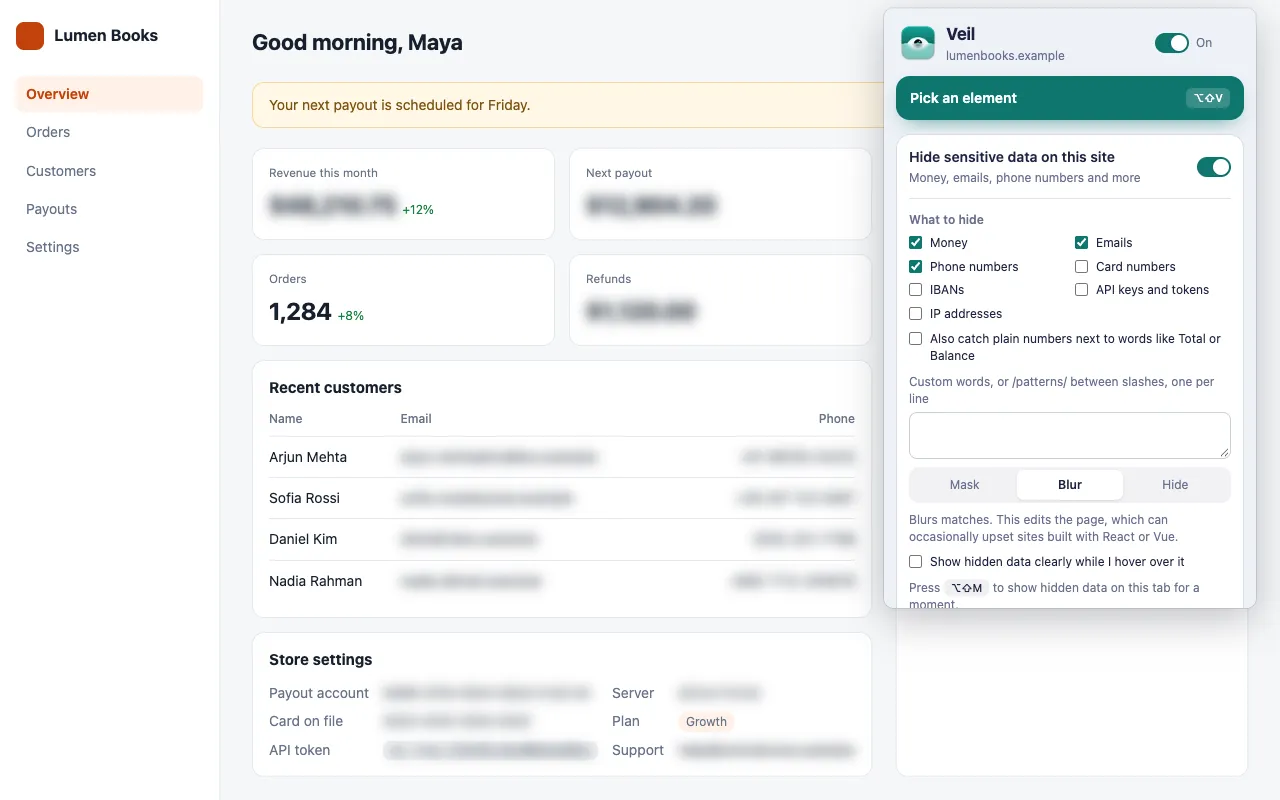
How do I blur sensitive data in a screen recording?
Turn on Hide sensitive data on this site, select the types, and choose the Blur style before you start recording. Every match on the site is blurred in the page itself, so your recorder captures the blurred version.
- Click the Veil icon on the site you will record.
- Turn on Hide sensitive data on this site and select the types under What to hide.
- Choose Mask, Blur or Hide.
Mask, blur or hide: which looks best on video?
| Style | Looks like | Note |
|---|---|---|
| Mask (default) | A solid grey bar over the match | Does not change the page’s HTML, so it is safe on React and Vue sites |
| Blur | The match is blurred | Wraps each match in an element, which can occasionally upset pages built with a framework |
| Hide | The match is invisible, and its space is kept | Does not change the page’s HTML |
Use Mask unless you have a reason not to. Blur keeps the shape of the data, which reads more naturally on video. See Mask, blur or hide.
Why do I not need to edit the video afterwards?
Veil covers each match in the page, including data that appears after you start: new table rows, a modal, the next page of a single-page app. There is nothing left to track and blur frame by frame.
To hide something without a fixed format, such as a name, a photo or a whole panel, press Pick an element (Alt+Shift+V) and choose Blur or Hide. Drag the slider to set the blur strength.
What should I check before I press record?
- Open each page you will show once before recording. On a slow page, data can flash on screen before Veil’s first scan.
- Press Show hidden data (Alt+Shift+M) to see what Veil covers, then press it again to cover it.
- Do not turn on Show hidden data clearly while I hover over it for a recording, or your cursor will uncover data.
What can Veil not cover in a recording?
Veil cannot reach charts drawn on a <canvas>, images, other sites’ shadow DOM components, or text with a gradient fill. Pick the whole panel that holds the chart or image, and blur or hide the panel instead. See Known limits.
Get Veil
Veil is free, open source under the MIT License, and needs no account. It makes no network requests, and your rules stay on your device.
Add Veil to Chrome. Taking a still instead? Read how to hide API keys in bug report screenshots.