Hide part of a website, and keep it hidden
Veil is a free Chrome extension that hides, or blurs, any element you pick on a website. Click a banner, a sidebar, a photo or a whole panel, and Veil hides it now and every time the page loads, on that page or across the whole site.
How do I permanently hide an element on a website?
Pick the element with Veil and choose Hide. Veil saves it as a rule and hides the element on every visit.
- Press Pick an element (Alt+Shift+V), click the Veil icon and then Pick an element, or right-click the element and choose Veil this element.
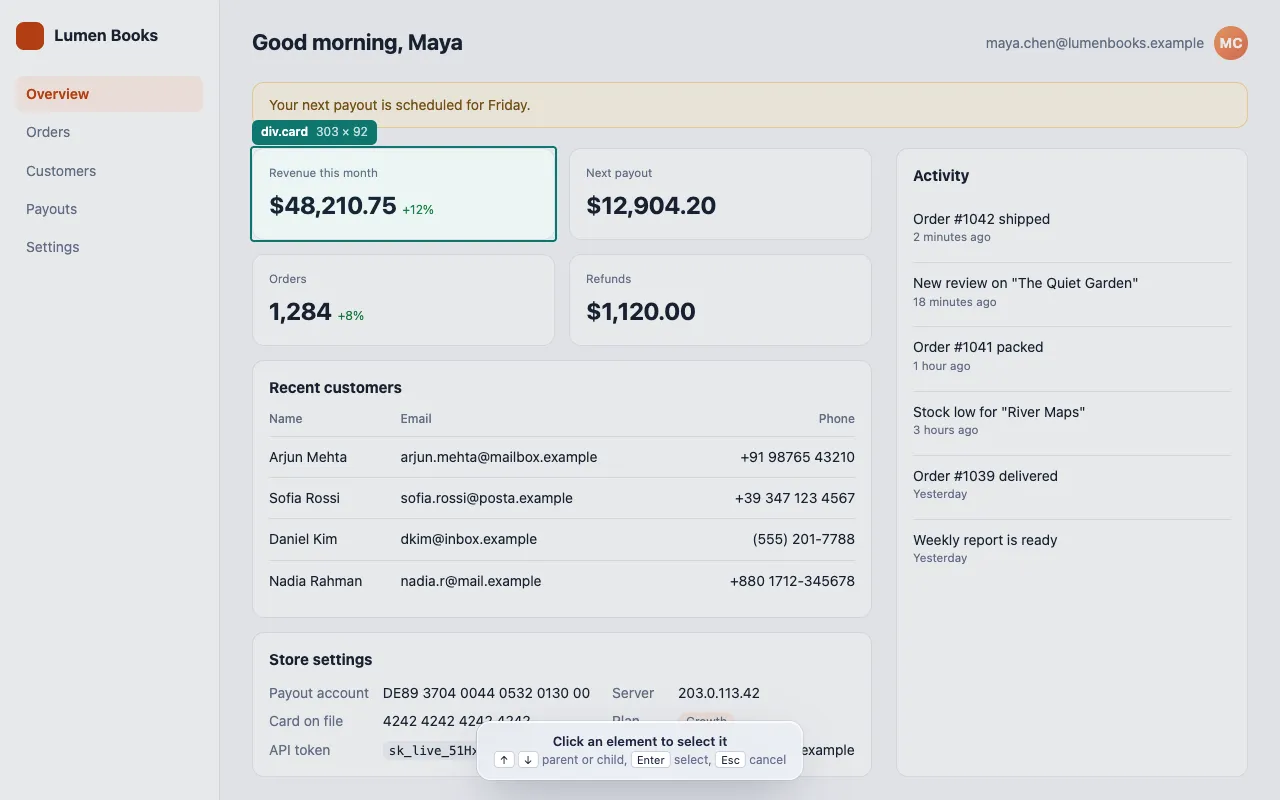
- Click the element. Use ↑ and ↓ to move to the parent or child element, and Esc to cancel.
- Choose This page or Whole site.
- Click Hide and choose how the page should close up.
Keep the space or remove from layout?
| Mode | Result | Use it for |
|---|---|---|
| Keep the space | A blank gap where the element was | Keeping the page layout the same in screenshots |
| Remove from layout | The page closes up around it | Banners, sidebars and panels you never want to see |
How do I pick exactly the right element?
The picker highlights the element under your cursor and shows its tag and size. Press ↑ to select its parent, or ↓ to select a child. After you select it, Select parent and Select child in the panel change the selection without starting again.
Pick a container to hide everything in it, such as a whole card rather than one line of text.
Can I blur an element instead?
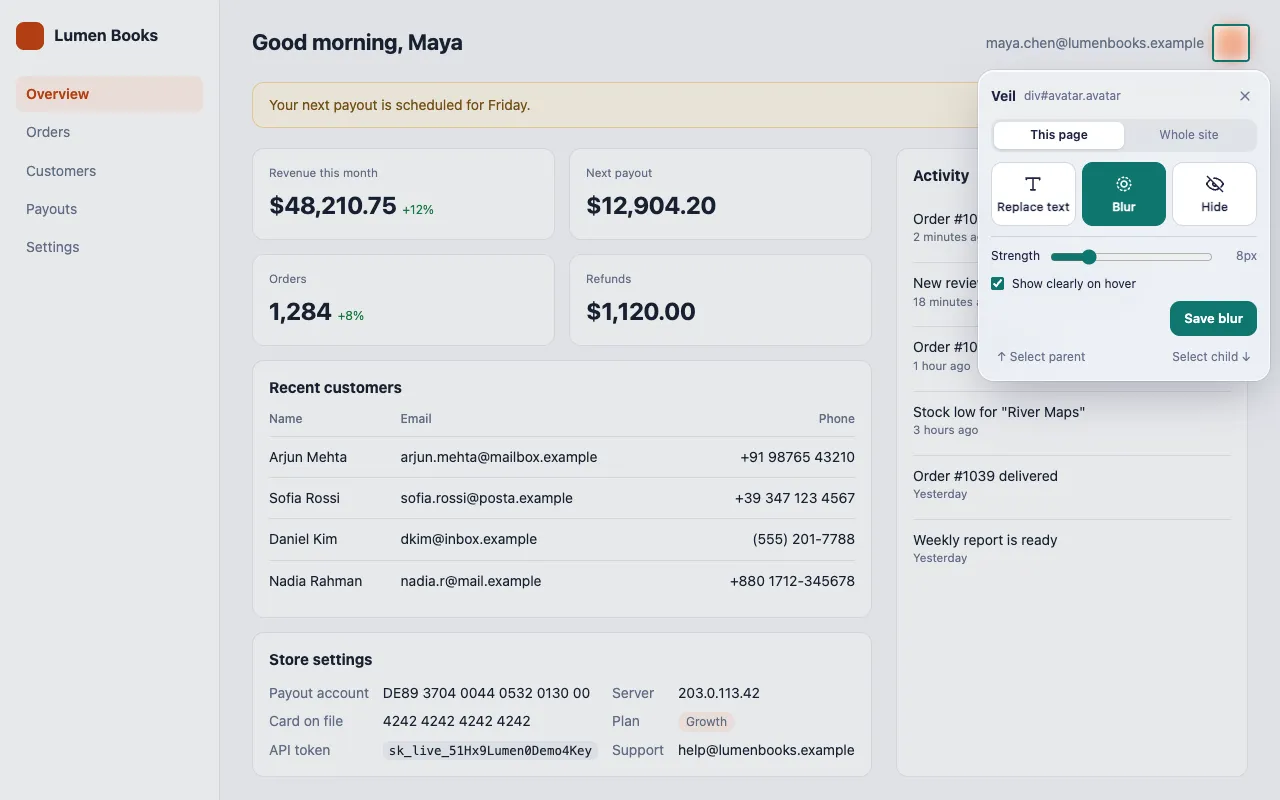
Yes. Choose Blur instead of Hide. Drag the slider to set the strength, and optionally let the element show clearly while you hover over it.
Will it stay hidden after the site updates?
Usually. Veil applies your rule every time the page loads, including on single-page apps. A redesign can make a rule stop matching, so Veil also stores the start of the element’s text as a fallback, which recovers many of these cases. Elements without text, such as images, cannot use that fallback.
In lists that reorder, a rule for “the 2nd card” can land on a different item when the order changes.
How do I show the element again?
- For a moment: press Pause all changes (Alt+Shift+X), and press it again to resume.
- For good: open the popup and turn the rule off, or delete it. The jump button next to a rule scrolls to its element.
- On another computer: Export your rules to a JSON file, then Import them there. Import never overwrites existing rules.
See Manage your rules.
Get Veil
Veil is free, open source under the MIT License, and needs no account. It makes no network requests, and your rules stay on your device.
Add Veil to Chrome. Hiding data before a call? Read how to hide sensitive data when screen sharing.